Importing Products
Written By Lucien
Last updated 3 months ago
example_products.csv
487 bytes• Spreadsheet
Vendor ID
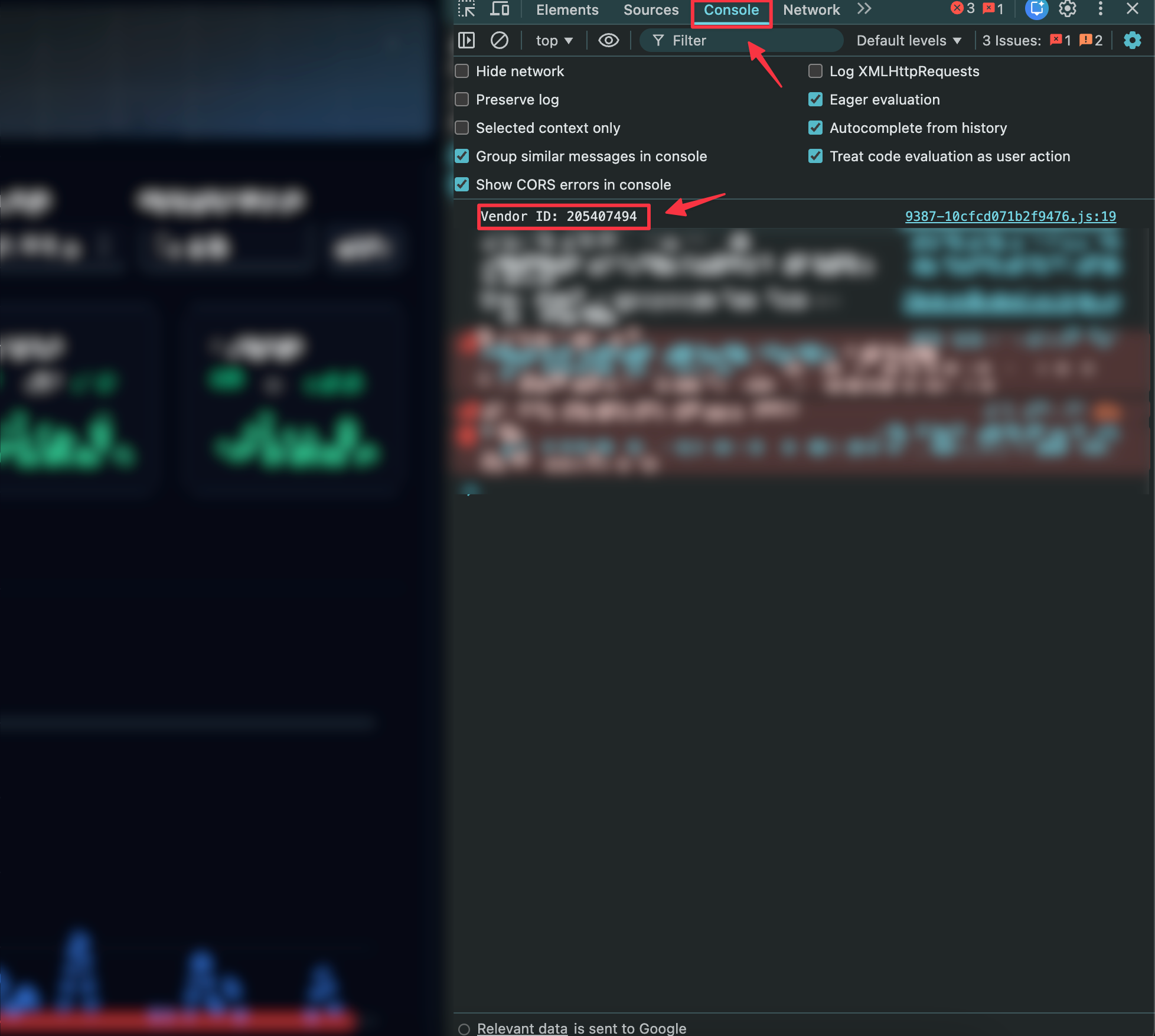
you can find this by going to your creator dashboard (dashboard.clearlydev.com) and opening dev tools / inspect element and selecting Console.
Tags
Each tag must be separated by | (as shown in the example table)
Price & Stock
These are both set in the licenses_json:[{"type":"standard","price":20,"on_sale_price":null,"stock_count":-1}]
type = License type (in most cases this will be “standard”)
on_sale_price = If you wish to run a sale on this product, you can set the sale price here, sale price and normal price must both be set (set to null if no sale)
stock_count = The amount of stock of product, for infinite stock, set to -1.
Thumbnail Image, Gallery Images and Product File
All file paths in your CSV (thumbnail_path, gallery_image_paths, product_zip_path) are relative to the root of the ZIP archive you provide us.
When importing products, you'll need to send us a ZIP file containing all your associated files, thumbnails, gallery images, and product files. The paths in your CSV tell our system where to find each file inside that ZIP.
Example:
If your ZIP file is structured like this:
my-products.zip
├── files/
│   ├── thumbs/
│   │   └── truck.png
│   ├── gallery/
│   │   ├── truck_1.png
│   │   └── truck_2.png
│   └── zips/
│       └── truck.zip
Then your CSV values would be:
thumbnail_path:           ./files/thumbs/truck.png
gallery_image_paths:      ./files/gallery/truck_1.png|./files/gallery/truck_2.png
product_zip_path:         ./files/zips/truck-product.zip
Categories
Sub-Categories